请勿将XaeroPlus与此模组一起使用!它与我无关,并且会导致严重且难以追踪的错误/崩溃。据称它还与一个服务器破坏群组有关联,这会使你的服务器建筑面临风险。
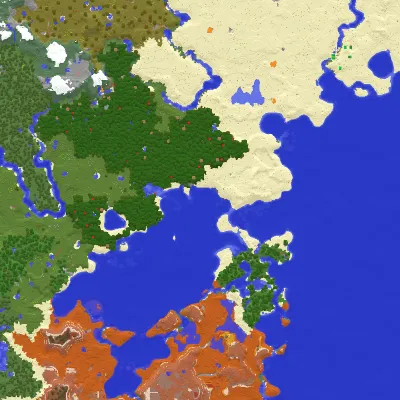
Xaero的世界地图模组为你的Minecraft客户端添加了一个自动绘制的全屏地图。它可以作为一个独立的模组运行,但与Xaero的小地图模组配合使用效果更佳。它之所以单独提供,是为了让Xaero的小地图尽可能保持轻量化。 此模组主要在客户端运行。在服务器端安装它是可选的,可用于一些额外功能,如世界识别。
该模组仍在开发中!如果你遇到任何错误,请报告,否则它们可能无法得到修复。
确保你的世界针对你所玩的Minecraft版本进行了优化(单人游戏 - 编辑 - 优化世界)(每次Minecraft更新后重复此操作)。从未优化的世界存档生成单人游戏地图所需的时间要长得多。
在Mastodon(推特替代品)上关注我? mas.to/@xaero96
在Patreon上支持我? patreon.com/xaero96
感谢!
功能
- 一个自动绘制的世界地图(与手动绘制的纸地图相对)。你可以在同一服务器地址上创建多个地图,并手动或自动在它们之间切换。
- 在单人游戏、多人游戏和领域中均可使用。
- 直观的界面。通过按M键打开地图界面。使用鼠标移动地图,并使用鼠标滚轮放大/缩小,类似于谷歌地图。所有相关控制都列在地图界面的工具提示中,并且你可以自定义其中的很多设置。
- 服务器上可选的自动多世界检测。
- 显示来自“开放派对与领地”模组的区块声明和盟友玩家。让你可以直接从地图上声明或强制加载区块。
- 支持资源包。更改资源包会导致整个世界地图重新生成。
- 支持洞穴维度(例如下界)。
- 可选的原版地图模式,使世界地图看起来像原版的纸地图。
- 地形阴影自定义。
- “足迹”,显示你最近走过的路径。
- 在必要时可帮助提高模组性能的设置。不过在大多数情况下,该模组默认性能就很好。
- 与Xaero的小地图模组集成。小地图模组将显示世界地图提供的区块。世界地图模组将显示Xaero的小地图模组中的路点。它也与“更好的PVP”模组兼容。你可以在不离开地图界面的情况下创建、编辑和传送到路点。
- 药水效果,用于控制服务器/地图上玩家对世界地图的使用。在撰写本文时,存在以下药水效果:xaeroworldmap:no_world_map。这些效果默认属于中立类型,但你也可以通过在效果ID末尾附加_harmful来指定有害类型,例如xaeroworldmap:no_world_map_harmful。
- 自该模组1.14.0版本起,你可以通过点击地图界面右下角的图标打开地图上路点菜单。在路点菜单中,你可以看到来自已渲染集合的所有地图路点列表,使用鼠标光标与之交互,并在文本字段中按名称过滤它们。该菜单还允许你切换禁用路点的可见性、切换渲染所有集合以及更改当前路点集合。将鼠标悬停在菜单中的路点上,其效果与悬停在地图上的路点相同:它们会在地图上突出显示,你可以使用右键单击或悬停控制与之交互。
- 一个将地图导出为PNG图像文件的选项。该模组尝试导出整个地图,因此如果地图长度达数百万方块,此功能可能无法使用。我计划在未来提供更多地图导出选项!
- 通过将地图访问权限绑定到热栏中所需的物品或已装备的物品来限制对地图的访问。例如,在配置文件的任何位置添加mapItemId:minecraft:compass,将其绑定到指南针物品。这样,除非你在热栏中有指南针或已装备指南针,否则地图将无法使用。
论坛主题 | 获取Xaero的小地图
常见问题解答
如何在多人游戏中恢复1.30更新前的下界地图,使其以“完整”洞穴模式类型显示?
首先,退出服务器,找到你用于在服务器上游玩的Minecraft游戏目录。在游戏目录中,进入xaero/world-map/Multiplayer_[服务器地址]/DIM - 1/[地图文件夹]。在旧版本中,xaero/world - map 简单地称为XaeroWorldMap。如果尚不存在,创建一个名为“caves”(不带引号)的文件夹,然后进入该文件夹。在caves文件夹内,如果尚不存在,创建一个名为“-2147483648”(不带引号)的文件夹。返回包含“caves”文件夹的文件夹,将所有“.zip”文件移动到caves/-2147483648文件夹中。你可以随意删除缓存文件夹,或者也将它们与“.zip”文件一起移动。
如何设置洞穴模式,使其表现得像1.30版本引入洞穴模式之前那样?
只有在使用普通版本的小地图或根本不使用小地图时,你才能完全实现这一点。现在小地图的公平游玩版本会在下界禁用世界地图洞穴模式,并且你无法切换该设置,所以不会完全和以前一样。
如果你有1.30版本之前的下界地图数据,请首先按照本页面“如何在多人游戏中恢复1.30更新前的下界地图,使其以“完整”洞穴模式类型显示?”下所述,将其移动到正确的文件夹中。
完成后,加入一个世界/服务器并打开世界地图设置。找到“默认洞穴模式类型”并将其设置为“关闭”,然后将“清晰洞穴地图”设置为“打开”。接下来,打开世界地图界面,点击屏幕左下角的洞穴图标。在打开的菜单中,将“洞穴模式顶部Y”设置为任意数字。如果你在主世界,将“洞穴模式类型”设置为“关闭”。之后当你在下界时,将“洞穴模式类型”设置为“完整”。洞穴模式类型是按维度存储的,所以你可以为任何类似下界的维度将其设置为“完整”,而对其他维度保持“关闭”。你还可以通过切换来在基岩顶上下显示之间切换。
为什么右键传送对我不起作用?
该模组会发送一个聊天命令将你传送到特定坐标,默认是/tp @s x y z,所以需要适当的权限。原版的/tp命令需要管理员权限(启用作弊),但在安装了某些插件的非原版服务器上,可能对命令有单独的权限设置。可以在世界地图设置中使用“地图传送命令”更改所使用的命令。非原版传送命令通常不支持诸如@s之类的选择器,所以你可能需要从配置的命令中删除它。还有一个名为“玩家传送命令”的选项,当你右键点击追踪的玩家(例如你在“开放派对与领地”中的队伍成员)时会使用该选项。传送到路点在小地图模组中有自己的设置。你可以在小地图描述页面的常见问题解答中了解相关内容。
如何在不手动行走的情况下探索地图?
在单人游戏中,地图直接从世界存档加载。这意味着你可以使用任何你喜欢的工具预先生成世界,重新登录并使用世界地图设置中的“重新加载区域”选项来修复地图缓存中的任何冲突。在多人游戏中,情况没那么简单。然而,如果你可以下载服务器世界存档并在单人游戏中进入该世界,那么你可以使用你选择的方法预先生成世界,重新登录,然后使用世界地图设置中的“转换所有区域”将整个世界存档转换为与多人游戏兼容的地图实例,并保存到xaero->world - map->World->null->cm$converted。在旧版本中,xaero/world - map 简单地称为XaeroWorldMap。你可以将该地图实例文件夹复制/移动到xaero/world - map文件夹中的服务器地图实例中。
为什么同一服务器地址/IP上的多个世界使用并写入同一张地图?
此模组允许你在同一服务器地址上拥有多个地图。你可以随时自由地在地图之间切换并创建新地图。通过为你所玩的服务器类型选择正确的“地图选择”模式,可以防止地图被覆盖。地图选择是在一个特殊菜单中进行的,点击世界地图界面左下角的图标(如果菜单默认未打开)。在菜单中,你可以在手动、世界出生点和单一模式之间切换,并使用顶部中心的下拉菜单选择/创建地图。如果你将鼠标悬停在地图选择选项上,你可以了解关于每种地图选择模式的所有信息,包括服务器模式。世界出生点模式等同于1.6版本之前世界地图所使用的模式。所以你不必降级模组仍可使用它。服务器模式在大多数情况下是最佳选择,因为服务器会根据服务器端等级ID自动控制你的地图选择。这需要在服务器端安装该模组。如果更改地图选择模式将你的地图切换到一个空地图,你始终可以从下拉菜单中选择你想要使用的地图并确认,从而重新绑定该地图。
为什么世界地图会要求确认?
单个服务器地址可以有多个主世界、下界等。这可能是由于多个子服务器,或者仅仅是多个世界存档,例如“大厅”世界和“游戏”世界。不同的世界在客户端没有任何唯一标识符,这使得无法可靠地区分它们。因此,世界地图模组允许你为同一服务器地址上的每个维度拥有多个世界地图。在旧版本的模组中,默认情况下,地图选择是手动,这意味着每次你切换维度/世界/子服务器时,都会要求你确认使用哪张地图。你也可以选择两种自动模式之一。地图选择是在一个特殊菜单中进行的,点击世界地图界面左下角的图标(如果菜单默认未打开)。在菜单中,你可以在手动、世界出生点和单一模式之间切换,并使用顶部中心的下拉菜单选择/创建地图。如果你将鼠标悬停在地图选择选项上,你可以了解关于每种地图选择模式的所有信息,包括服务器模式。世界出生点模式等同于1.6版本之前世界地图所使用的模式。所以你 不必 降级模组仍可使用它。服务器模式在大多数情况下是最佳选择,因为服务器会根据服务器端等级ID自动控制你的地图选择。这需要在服务器端安装该模组。如果更改地图选择模式将你的地图切换到一个空地图,你始终可以从下拉菜单中选择你想要使用的地图并确认,从而重新绑定该地图。
为什么安装世界地图后,我在服务器上看不到小地图路点?
你当前确认的地图会影响小地图模组中哪个路点子世界被视为自动的。这允许每个创建的地图拥有单独的路点数据。在任何时候,你都可以通过进入路点菜单(按U键)并从右上角的下拉菜单中选择它,来选择并查看任何非自动路点子世界。你可以通过选择选项 -> 使子世界自动,将任何子世界设置为你当前确认地图的自动子世界。
为什么我的特定服务器的世界地图“重置”了?
不要惊慌。它几乎肯定实际上并未被删除。旧版本的世界地图使用基于世界出生点的系统将服务器划分为多个地图。这个系统经常会因为服务器通过向你的游戏客户端发送虚假的世界出生点坐标,为原版指南针物品添加自定义功能而出现问题。确保你将模组更新到最新版本。 现在你可以在多种地图选择模式之间进行选择,手动是默认模式。你现在可以查看当前服务器地址上的任何世界地图。点击世界地图左下角的图标打开地图选择菜单,如果它默认未打开。 顶部中心的下拉菜单允许你选择现有地图或创建新的世界地图。 你可以将鼠标悬停在地图选择模式设置(左下角)上,了解每种模式的工作原理。服务器模式在大多数情况下是最佳选择,因为服务器会根据服务器端等级ID控制你的地图选择。这需要在服务器端安装该模组。手动模式是最安全的替代方案,应该适用于其他所有服务器。当服务器模式不可用时,还有另外两种自动地图选择模式。在该设置的工具提示中了解更多关于它们的信息。
旧地图不在地图菜单中? 这可能意味着两件事:服务器地址已更改或维度ID已更改。
让我们从维度ID更改开始。服务器上的每个维度在游戏目录 -> xaero -> world - map目录中有一个单独的目录。在旧版本中,xaero/world - map 简单地称为XaeroWorldMap。在对其进行任何操作之前,请备份xaero/world - map目录。 在旧版本的模组中,维度目录名称包含服务器地址和维度键,例如XaeroWorldMap/Multiplayer_127.0.0.1_DIM1。在较新版本中,维度目录是一个子目录,例如xaero/world - map/Multiplayer_127.0.0.1/DIM1。出于兼容性原因,默认的主世界、下界和末地维度分别命名为null、DIM - 1和DIM1。其他维度的名称应基于原始维度ID,例如Multiplayer_127.0.0.1/minecraft$overworld_creative。在1.16+版本中,你可以在游戏内的F3屏幕上查看当前维度ID,以确定哪个目录对应哪个维度(例如“minecraft:overworld”)。在编辑文件/目录之前,请退出到游戏标题屏幕或关闭游戏。
每个维度目录包含子目录,每个子目录对应你在该维度中的一张地图(例如mw$default或mw - 4,0,-4),以及一个名为dimension_config.txt的文件,其中包含地图的实际显示名称。你可以使用该文件帮助你找到你想要的特定地图目录。在维度目录之间移动/复制地图目录应可在维度之间移动/复制地图。你可以稍后在游戏中为其命名。最常见的情况 类似于将地图从/null 移动到/minecraft$overworld_survival。当1.16+版本的服务器开始为每个子世界使用唯一的维度ID时,就需要这样做。
对于服务器地址更改,你首先必须删除游戏目录 -> xaero -> world - map中包含新服务器地址的所有目录。在旧版本中,xaero/world - map 简单地称为XaeroWorldMap。如果你使用的是最新版本的模组,通常只有一个这样的目录。 在执行此操作之前,请备份整个xaero/world - map目录。另外,至少退出游戏到标题屏幕。 然后你必须将xaero/world - map中每个旧服务器地址目录重命名为新地址,仅替换地址部分。
如果你有问题,请给我发消息或留言!
如果你 Xaero's World Map mod adds a self-writing fullscreen map to your Minecraft client. Works as a separate mod but is a lot better with Xaero's Minimap. The reason why it's available separately is to keep Xaero's Minimap as light-weight as possible. This mod is mostly client-sided. Installing it on the server side is optional for some additional features like world identification. The mod is still in development! Please report any bugs that you encounter or otherwise they probably won't get fixed. Make sure your world is optimized (Singleplayer - Edit - Optimize World) for the Minecraft version you're playing (repeat after every Minecraft update). It takes A LOT longer to generate singleplayer maps from unoptimized world saves. Thank you! Forum thread | Get Xaero's Minimap First, exit the server and locate the Minecraft game directory that you're using to play on the server. In the game directory, go into xaero/world-map/Multiplayer_[server_address]/DIM-1/[map_folder]. In older versions, xaero/world-map is simply XaeroWorldMap. If such doesn't exist already, create a folder called "caves", without the quotation marks, and go into it. Inside the caves folder, create a folder called "-2147483648", without the quotation marks, if such doesn't exist already. Go back into the folder that contains the "caves" folder and move all ".zip" files to the caves/-2147483648 folder. Feel free to delete the cache folders or also move them with the ".zip" files. You can fully achieve this only when using the normal version of the minimap or no minimap at all. The fair-play version of the minimap now disables world map cave mode in the Nether and you can't toggle that, so it won't be exactly like it used to be. If you have Nether map data from before 1.30, please start by moving it in the correct folder as explained under "How do I restore pre 1.30 update Nether maps in multiplayer to be displayed in the "full" cave mode type?" on this page. The mod sends a chat command to teleport you to specific coordinates, which is /tp @s x y z by default, so appropriate permission is necessary. The vanilla /tp command requires OP status (cheats enabled) but it's possible to have separate permissions for commands on a non-vanilla server with certain plugins installed. The used command can be changed in the world map settings with "Map Teleport Command". Non-vanilla teleportation commands often don't support the selectors such as @s, so you might have to remove it from the configured command. There is also an option called "Player Teleport Command" which is used when you right click tracked players (e.g. your party from Open Parties and Claims). Teleportation to waypoints uses its own setting in the minimap mod. You can read about it on the minimap description page under FAQ. In singleplayer, the map is loaded directly from the world save. This means that you can pregenerate the world using whatever tools you prefer, relog and use the "Reload Regions" option in the world map settings to fix any conflicts in the map cache. In multiplayer, it isn't as simple. However, if you can download the server world save and enter the world in singleplayer, then you can pregenerate the world using a method of your choice, relog and then use the "Convert All Regions" in the world map settings to convert the whole world save to a multiplayer-compatible map instance saved to xaero->world-map->World->null->cm$converted. In older versions, xaero/world-map is simply XaeroWorldMap. You can copy/move that map instance folder to your server map instances in the xaero/world-map folder. This mod lets you have multiple maps on the same server address. You can freely switch between maps and create new ones at any time. Map overwriting can be prevented by choosing the right "Map Selection" mode for the type of server that you are playing on. Map selection is done in a special menu by clicking the bottom left icon on the world map screen (if the menu isn't open by default). In the menu you can switch between Manual, World Spawn and Single modes and select/create maps by using the top-center dropdown menu. If you hover over the Map Selection option, you can read everything you need to know about each map selection mode, including Server mode. World Spawn mode is the equivalent of what was used by the world map pre 1.6. So you don't have to downgrade the mod to still use it. Server mode is the best option for most cases because the server automatically controls your map selection based on server-side level IDs. It requires the mod to be installed on the server side. If changing the map selection mode switches your map to an empty one, you can always rebind the map that you want to be used by selecting it from the dropdown menu and confirming. A single server address can have multiple overworlds, nethers etc. It can be due to multiple sub-servers or just multiple world saves, for example a "Lobby" world and a "Game" world. Different worlds don't have any unique identifiers on the client side, which makes it impossible to reliably differentiate between them. Because of this, the world map mod lets you have multiple world maps for each dimension on the same server address. In older mod versions, by default, map selection is Manual, which means that you are asked to confirm which map to use every time you switch dimensions/worlds/sub-servers. You can also choose one of the 2 automatic modes. Map selection is done in a special menu by clicking the bottom left icon on the world map screen (if the menu isn't open by default). In the menu you can switch between Manual, World Spawn and Single modes and select/create maps by using the top-center dropdown menu. If you hover over the Map Selection option, you can read everything you need to know about each map selection mode, including Server mode. World Spawn mode is the equivalent of what was used by the world map pre 1.6. So you don't have to downgrade the mod to still use it. Server mode is the best option for most cases because the server automatically controls your map selection based on server-side level IDs. It requires the mod to be installed on the server side. If changing the map selection mode switches your map to an empty one, you can always rebind the map that you want to be used by selecting it from the dropdown menu and confirming. Your currently confirmed map affects which waypoints sub-world in the minimap mod is considered automatic. This allows each created map to have separate waypoints data. At any point in time, you can select and view any non-automatic waypoints sub-world by going to the waypoints menu (press U) and selecting it from top-right dropdown menu. You can make any sub-world automatic for your currently confirmed map by selecting Options -> Make Sub-World Auto. Do not panic. It's almost certainly not actually deleted. Old world map versions use a world spawn-based system to separate a server into multiple maps. This system often breaks because of servers adding custom functionality to the vanilla compass item by sending fake world spawn coordinates to your game client. Make sure you update the mod to the latest version. There are now multiple map selection modes you can choose between, Manual being the default one. You can now view any world map you have on the current server address. Click the bottom left icon on the world map to open the map selection menu, if it's not open by default. The top center dropdown menu allows you to select existing or create new world maps. You can hover over the map selection mode setting (bottom left) to read about how each mode works. Server mode is the best option for most cases because the server controls your map selection based on server-side level IDs. It requires the mod to be installed on the server side. Manual mode is the safest alternative and should work on every other server. There are also 2 additional automatic map selection modes when Server mode isn't an option. Read more about them in the tooltip of the setting. Old map is not in the map menu? This can mean 2 things: the server address has changed or the dimension IDs have changed. Let's start with the dimension ID change. Each dimension on the server has a separate directory in the game directory -> xaero -> world-map directory. In older versions, xaero/world-map is simply XaeroWorldMap. Please backup the xaero/world-map directory before you begin doing anything with it. In older mod versions, the dimension directory name contains the server address and the dimension key, for example XaeroWorldMap/Multiplayer_127.0.0.1_DIM1. In newer versions the dimension directory is a sub-directory, so something like xaero/world-map/Multiplayer_127.0.0.1/DIM1. For compatibility reasons, default overworld, nether and the end dimensions are named null, DIM-1 and DIM1. Other dimensions should have their name be based on the original dimension ID, for example Multiplayer_127.0.0.1/minecraft$overworld_creative. In 1.16+, you can see your current dimension ID on the F3 screen ingame to figure out which directory is meant for which dimension (for example "minecraft:overworld"). Please exit to the game title screen or close the game before editing files/directories. For server address changes, you would first have to remove all directories inside game directory -> xaero -> world-map that contain the new server address. In older versions, xaero/world-map is simply XaeroWorldMap. There is usually only 1 such directory if you are using the latest mod version. Please backup the whole xaero/world-map directory before you do that. Also, exit the game at least to the title screen. Then you would have to rename each old server address directory (in xaero/world-map) to the new address, replacing ONLY the address part. Message me or leave a comment if you have questions! Here's the old explanation if you can't update the mod to 1.6.1 or newer: Do not panic. It's almost certainly not actually deleted (this has never happened as far as I know). It's likely caused by a server plugin changing the behavior of the vanilla compass item and interfering with the mod's "multiworld" detection. In most such cases the compass item points to your bed instead of the global spawn point. Sleeping in the right bed again should bring everything back for you if sleeping in another one was the cause of the map "resetting". Make sure Minecraft is NOT RUNNING. 1. Go to the game directory 2. Go to the XaeroWorldMap directory 3. Find directories that represent the dimensions you have visited on the server. These directories contain the address of the server in their name. The one that ends with _null is the overworld, _dim-1 is Nether etc. 4. Open the overworld directory (_null). 5. You should see multiple directories that start with mw. 6. Find the one that is the biggest in file size. Copy the name of it somewhere so you don't lose it. 7. Now find the newest mw directory (likely the emptiest or just check the creation date). Move this directory somewhere else. Don't delete it just yet. 8. Rename the directory from step 6 to the name of the backed up directory from step 7. 9. Open Minecraft and test if the overworld world map is back. 10. If it's not, exit Minecraft and restore the old name of the directory that you have renamed + restore the backed up folder. Reread all the steps to make sure you're doing everything right. 11. Rename and backup the directories with the same names as overworld for every other dimension that you'd like to restore. Contact me if you have questions! Please read the "Why are my waypoints no longer shown for a specific server?" section on the minimap description page. It should cover most cases. Contact me, if it doesn't help. To do that, please install the mod on the server side (requires a Forge/Fabric/Quilt server as of writing this). When you start your server, a new "common" config file will be created in the server directory (not the world folder), usually in the "config" folder. In the config file, you get multiple options that let you disable certain mod features for your players. Changes require a server restart. Alternatively, if you have the minimap installed, you can include the following strings in a server/system message sent to players (on login), which do the following: (requires minimap to work) §f§a§i§r§x§a§e§r§o - causes the minimap to disable cave mode (including world map) and entity radar (fair-play mode) §x§a§e§r§o§w§m§n§e§t§h§e§r§i§s§f§a§i§r - causes world map cave mode to work in the nether despite the minimap being fair-play §r§e§s§e§t§x§a§e§r§o - reset all the system message flags Look for the "xaeroworldmap-common" config file in the config folder directly in your server directory (not the world folder). In the config file, you get multiple options that let you disable certain mod features for your players. One of the options lets you disable the registration of status effects, which is what prevents players from joining. Changes require a server restart. Do the same for the minimap mod. You are allowed to make videos using this mod. Using it in your modpacks is allowed with the following conditions: Do not use XaeroPlus with this mod! It is not affiliated with me and causes critical untrackable bugs/crashes. It is also allegedly affiliated with a server griefing group, which can put your server builds at risk.
Follow me on Mastodon (Twitter alternative)? mas.to/@xaero96
Support me on Patreon? patreon.com/xaero96
Features
FAQ
How do I restore pre 1.30 update Nether maps in multiplayer to be displayed in the "full" cave mode type?
How do I set up cave mode to behave like it used to pre 1.30 before cave mode was introduced?
After you're done with that, join a world/server and open the world map settings. Locate "Default Cave Mode Type" and set it to OFF and then set "Legible Cave Maps" to ON. Next, open the world map screen and click the cave icon in the bottom left of the screen. In the menu that opens, set the "Cave Mode Top Y" to absolutely any number. If you are in the overworld, set the "Cave Mode Type" to OFF. When you are in the Nether later, set "Cave Mode Type" to Full. The cave mode type is stored per dimension, so you can set it to Full for any nether-like dimension and keep it on OFF for anything else. You can also switch between displaying below and above bedrock roof by toggling it.Why does right-click teleportation not work for me?
How do I discover the map without manually walking?
Why are multiple worlds on the same server address/IP using and writing to the same map?
Why does the world map ask for confirmation?
Why can't I see my minimap waypoints on a server after the installation of the world map?
Why has my world map "reset" for a specific server?
Each dimension directory contains sub-directories, one for each map that you have in the dimension (for example mw$default or mw-4,0,-4) as well as a file named dimension_config.txt that contains the actual display names of the maps. You can use the file to help you find a specific map directory that you want. Moving/copying a map directory between dimension directories should move/copy it between dimensions. You can give it a name later ingame. The most common case would be something like moving a map from /null to /minecraft$overworld_survival. It is needed when a 1.16+ server starts using a unique dimension ID for each sub-world.
If the map "reset" because of a new plugin being added (and if removing it is not an option for you), then here's how you can restore your map (and hope the plugin doesn't do it again):
If overworld is now fixed, proceed to step 11.Why have my waypoints not restored after restoring the map?
How do I prohibit the use of cave mode on my server?
How do I let vanilla client players join my server that has the mod installed?
本站是资源分享站,资源均来自于互联网和用户自发分享,仅供学习和交流使用。如有版权问题,请联系管理员删除。
操作
创作者
待认领资源
成为此资源的创作者
其他链接
最近更新资源
神秘启旅 ~ Thaum Journey
热度 2476 | 4 天前更新
愚者 - The Fool
热度 81567 | 4 天前更新
咒术回战(咒术战斗) - Jujutsu Kaisen (Sorcery Fight)
热度 2816 | 5 天前更新
诡厄使徒:诸神黄昏
热度 193 | 5 天前更新
终焉决斗NW
热度 302 | 5 天前更新
Minecraft-摄影奇境
热度 348 | 6 天前更新
无限遗产II - Infinity Legacy II
热度 3746 | 6 天前更新
机械动力:黄铜协奏曲
热度 4220 | 6 天前更新
ATM10:空岛 - All the Mods 10: To the Sky
热度 284 | 1 周前更新
魔女之旅
热度 1167 | 1 周前更新
石头世界4 FTB StoneBlock 4
热度 4278 | 1 周前更新
通天之路
热度 1890 | 1 周前更新
评论区 (0)
登录 后才能发表评论
快来发表第一条评论吧!